> ## Documentation Index
> Fetch the complete documentation index at: https://opentouter.ai/docs/llms.txt
> Use this file to discover all available pages before exploring further.
# Datadog
> Send traces to Datadog
With [Datadog LLM Observability](https://docs.datadoghq.com/llm_observability), you can investigate the root cause of issues, monitor operational performance, and evaluate the quality, privacy, and safety of your LLM applications.
## Step 1: Create a Datadog API key
In Datadog, go to **Organization Settings > API Keys** and create a new key.
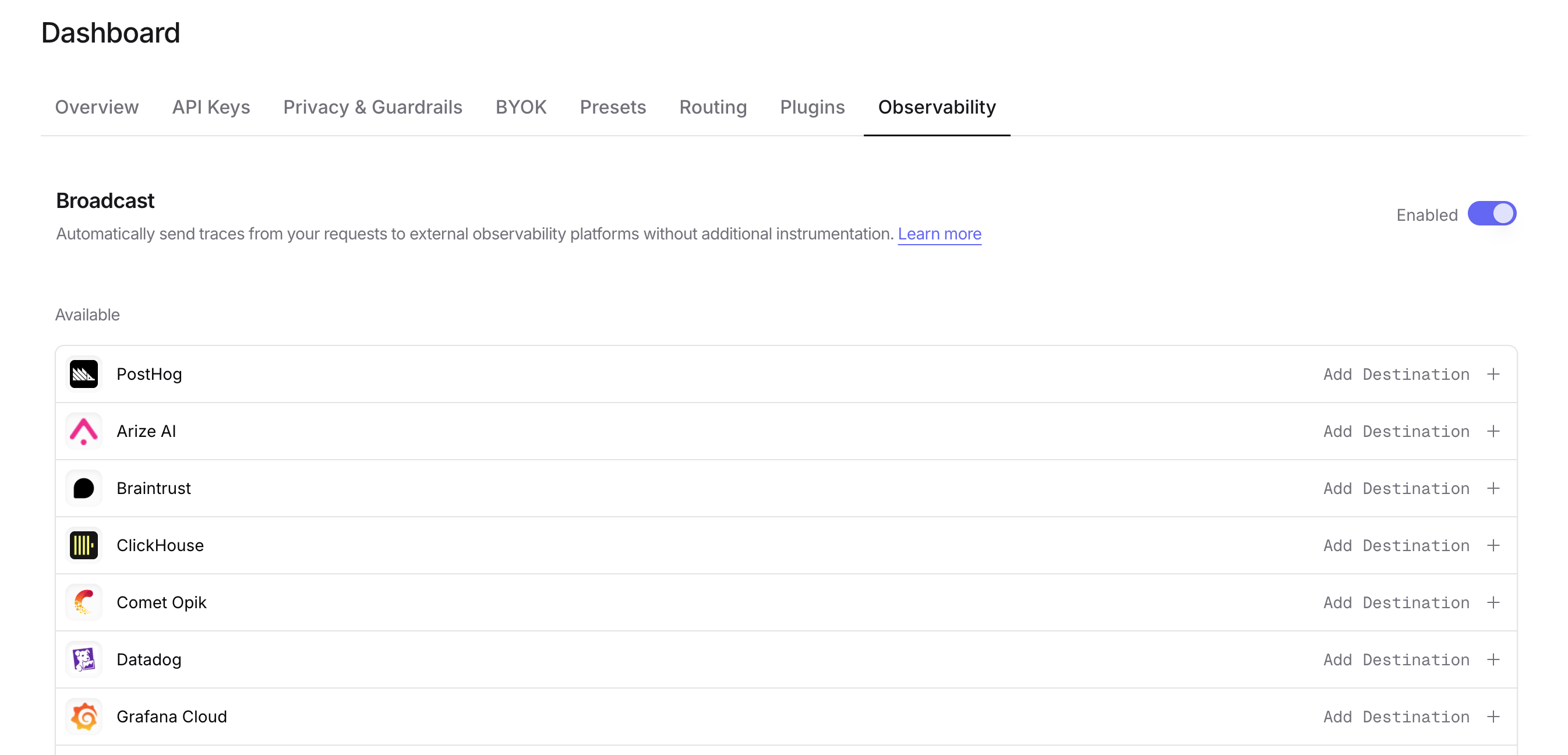
## Step 2: Enable Broadcast in OpenRouter
Go to [Settings > Observability](https://openrouter.ai/settings/observability) and toggle **Enable Broadcast**.
 ## Step 3: Configure Datadog
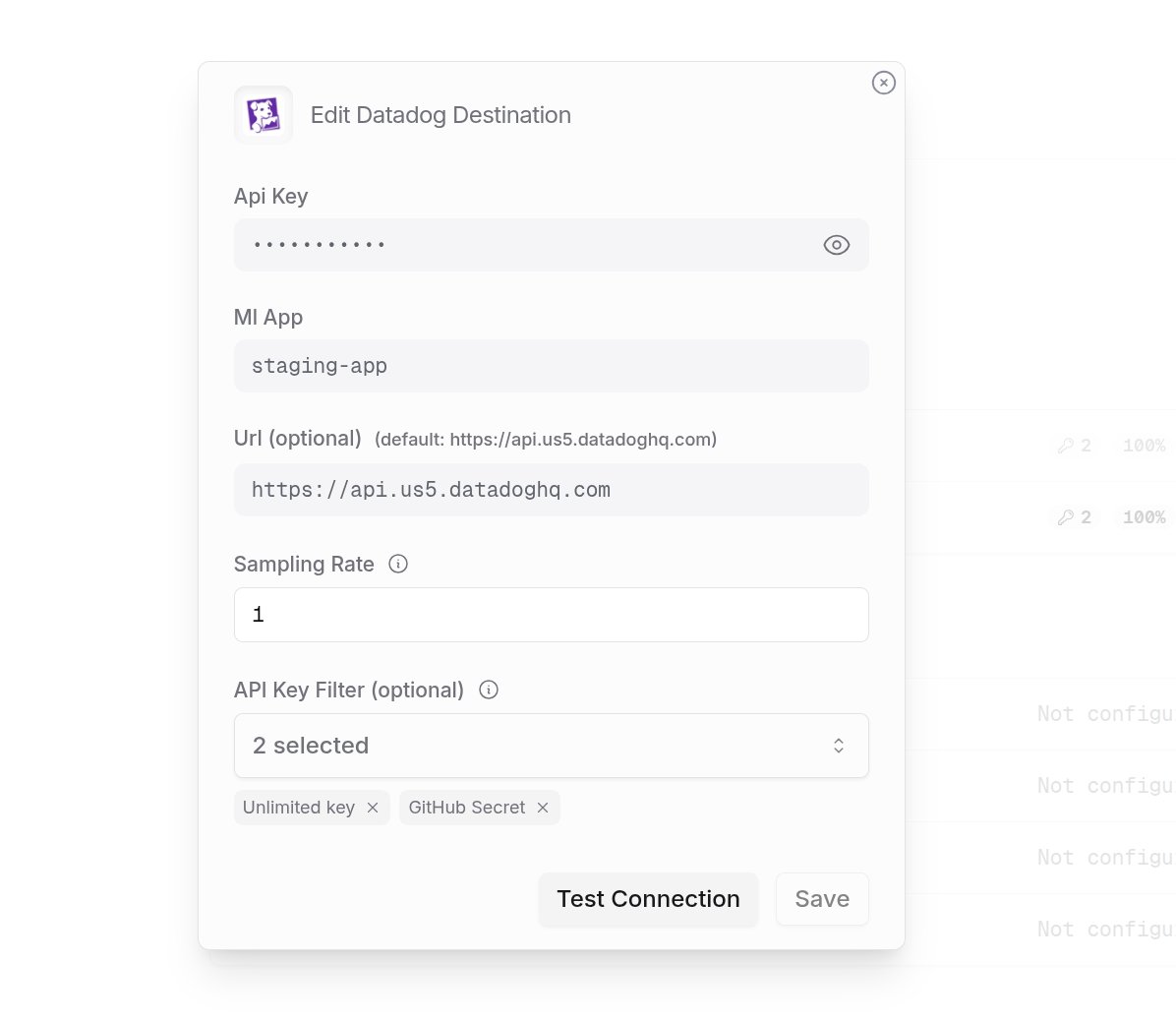
Click the edit icon next to **Datadog** and enter:
* **Api Key**: Your Datadog API key
* **Ml App**: A name for your application (e.g., "production-app")
* **Url** (optional): Default is `https://api.us5.datadoghq.com`. Change for other regions
## Step 3: Configure Datadog
Click the edit icon next to **Datadog** and enter:
* **Api Key**: Your Datadog API key
* **Ml App**: A name for your application (e.g., "production-app")
* **Url** (optional): Default is `https://api.us5.datadoghq.com`. Change for other regions
 ## Step 4: Test and save
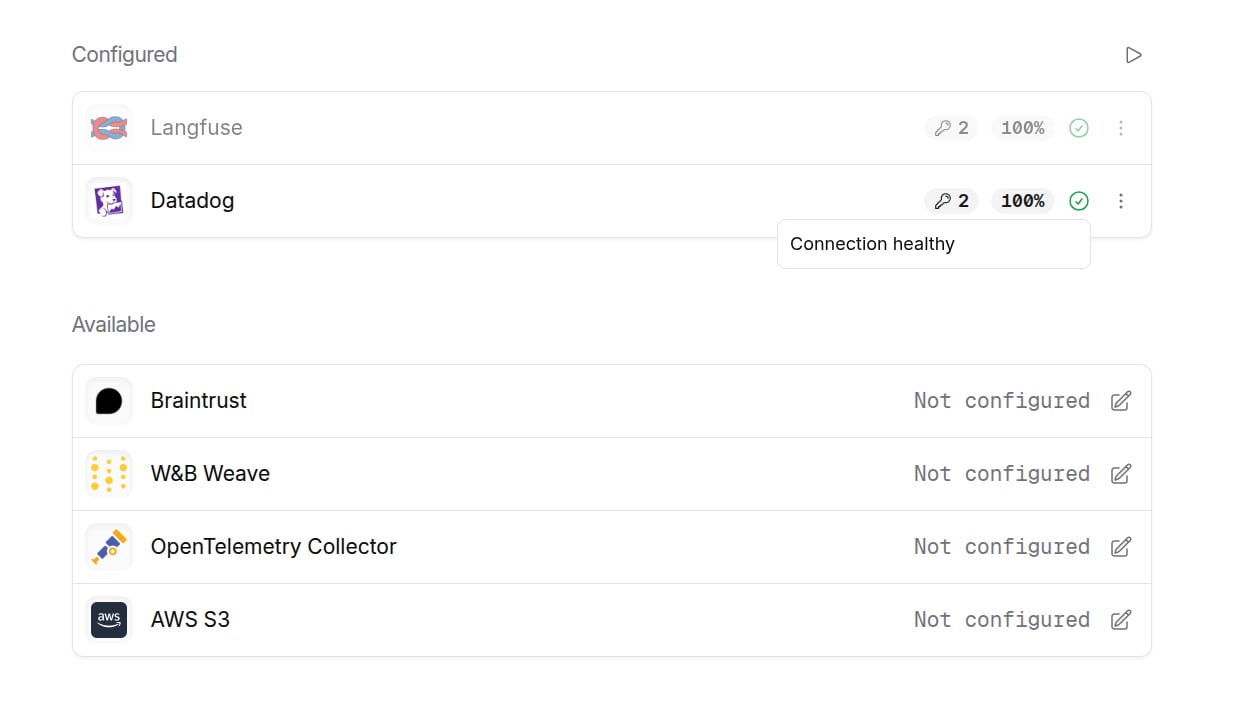
Click **Test Connection** to verify the setup. The configuration only saves if the test passes.
## Step 4: Test and save
Click **Test Connection** to verify the setup. The configuration only saves if the test passes.
 ## Step 5: Send a test trace
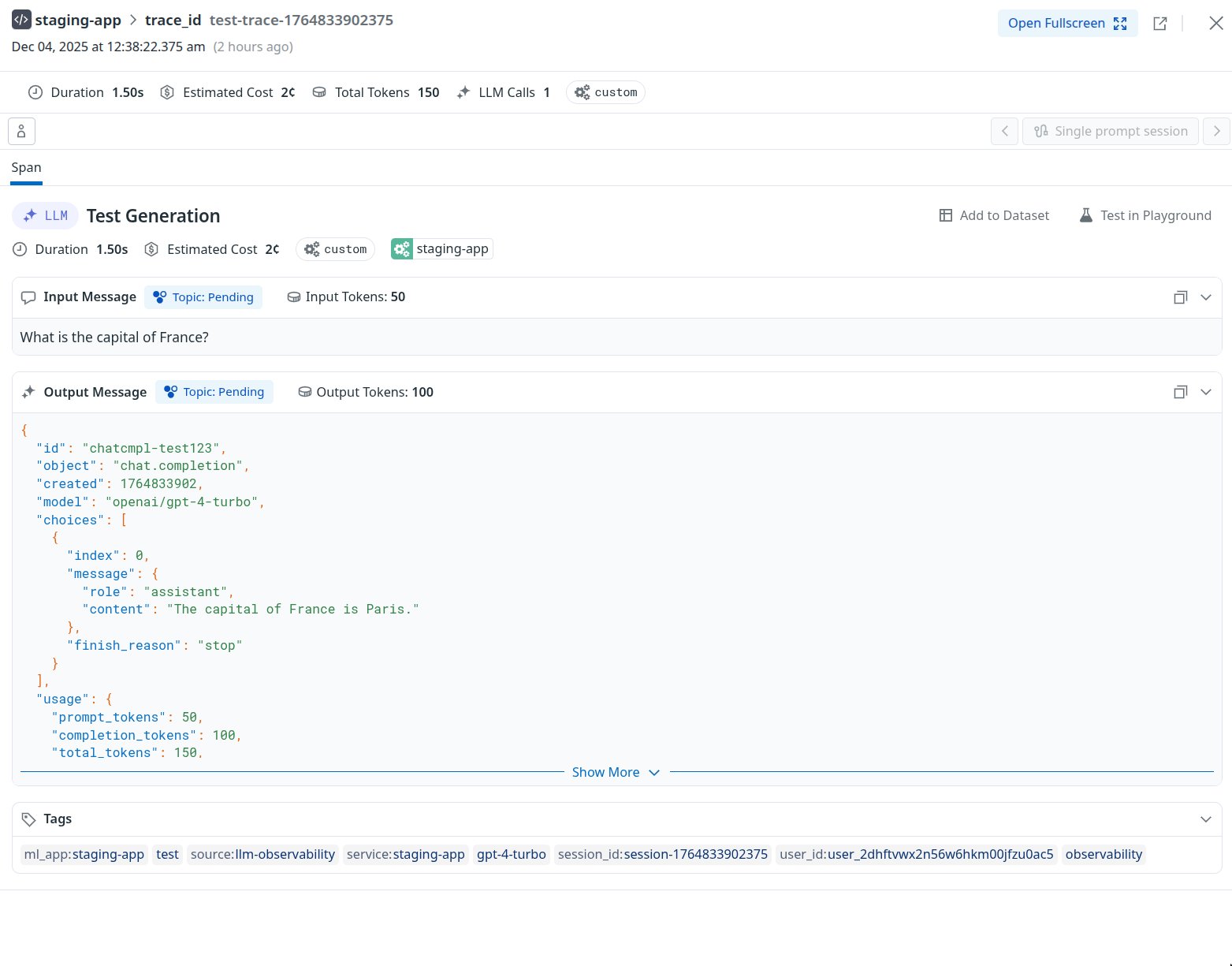
Make an API request through OpenRouter and view the trace in Datadog.
## Step 5: Send a test trace
Make an API request through OpenRouter and view the trace in Datadog.
 ## Custom Metadata
Datadog LLM Observability supports tags and custom metadata for organizing and filtering your traces.
### Supported Metadata Keys
| Key | Datadog Mapping | Description |
| ----------------- | --------------- | ------------------------------------------- |
| `trace_id` | Trace ID | Group multiple requests into a single trace |
| `trace_name` | Span Name | Custom name for the root span |
| `span_name` | Span Name | Name for intermediate workflow spans |
| `generation_name` | Span Name | Name for the LLM span |
### Tags and Metadata
Datadog uses tags for filtering and grouping traces. The following are automatically added as tags:
* `service:{ml_app}` - Your configured ML App name
* `user_id:{user}` - From the `user` field in your request
Any additional keys in `trace` are passed to the span's `meta` object and can be viewed in Datadog's trace details.
### Example
```json lines theme={null}
{
"model": "openai/gpt-4o",
"messages": [{ "role": "user", "content": "Hello!" }],
"user": "user_12345",
"session_id": "session_abc",
"trace": {
"trace_name": "Customer Support Bot",
"environment": "production",
"team": "support",
"ticket_id": "TICKET-1234"
}
}
```
### Viewing in Datadog
In Datadog LLM Observability, you can:
* Filter traces by tags in the trace list
* View custom metadata in the trace details panel
* Create monitors and dashboards using metadata fields
## Privacy Mode
When [Privacy Mode](/guides/features/broadcast#privacy-mode) is enabled for this destination, prompt and completion content is excluded from traces. All other trace data — token usage, costs, timing, model information, and custom metadata — is still sent normally. See [Privacy Mode](/guides/features/broadcast#privacy-mode) for details.
## Custom Metadata
Datadog LLM Observability supports tags and custom metadata for organizing and filtering your traces.
### Supported Metadata Keys
| Key | Datadog Mapping | Description |
| ----------------- | --------------- | ------------------------------------------- |
| `trace_id` | Trace ID | Group multiple requests into a single trace |
| `trace_name` | Span Name | Custom name for the root span |
| `span_name` | Span Name | Name for intermediate workflow spans |
| `generation_name` | Span Name | Name for the LLM span |
### Tags and Metadata
Datadog uses tags for filtering and grouping traces. The following are automatically added as tags:
* `service:{ml_app}` - Your configured ML App name
* `user_id:{user}` - From the `user` field in your request
Any additional keys in `trace` are passed to the span's `meta` object and can be viewed in Datadog's trace details.
### Example
```json lines theme={null}
{
"model": "openai/gpt-4o",
"messages": [{ "role": "user", "content": "Hello!" }],
"user": "user_12345",
"session_id": "session_abc",
"trace": {
"trace_name": "Customer Support Bot",
"environment": "production",
"team": "support",
"ticket_id": "TICKET-1234"
}
}
```
### Viewing in Datadog
In Datadog LLM Observability, you can:
* Filter traces by tags in the trace list
* View custom metadata in the trace details panel
* Create monitors and dashboards using metadata fields
## Privacy Mode
When [Privacy Mode](/guides/features/broadcast#privacy-mode) is enabled for this destination, prompt and completion content is excluded from traces. All other trace data — token usage, costs, timing, model information, and custom metadata — is still sent normally. See [Privacy Mode](/guides/features/broadcast#privacy-mode) for details.